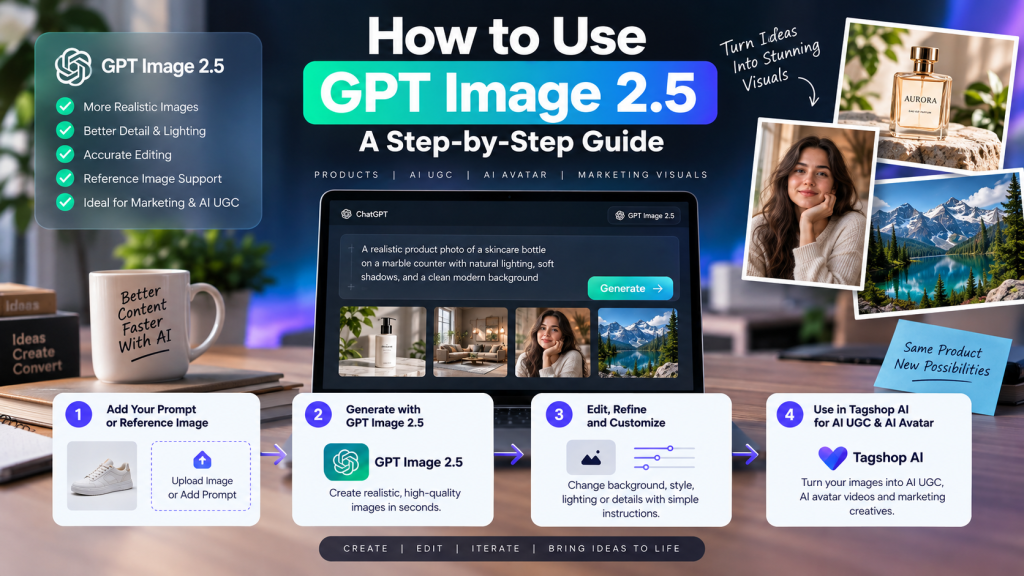
AI image generation has quickly become an important part of modern content creation. From product photography and social media graphics to advertising creatives and AI UGC campaigns, businesses can now create high-quality visuals without traditional photoshoots or complicated design workflows.
One of the newest developments in this space is GPT Image 2.5, OpenAI’s latest image-generation technology. It is designed to create and edit images with improved detail, more natural lighting, richer textures, better reference-image preservation, and more reliable editing across multiple instructions. OpenAI also says image generation latency can be up to 50% lower than its previous Images 2.0 system.
For marketers, creators, eCommerce brands, and advertisers, this means AI image generation can become part of a much larger creative workflow rather than simply a way to generate random pictures.
In this guide, you’ll learn how to use GPT Image 2.5, how to write effective prompts, how to work with reference images, how to edit generated visuals, and how you can combine AI-generated images with platforms such as Tagshop AI to create product creatives, AI UGC, and AI avatar content.
What Is GPT Image 2.5?
GPT Image 2.5 is OpenAI’s latest generation of image generation and editing technology. ChatGPT Images 2.5 is available across ChatGPT on desktop, mobile, and web, while developers can access GPT-Image-2.5 models through the API. OpenAI currently offers GPT-Image-2.5 Flare for fast, high-quality everyday image generation and GPT-Image-2.5 Sunburst for workflows where more precise image editing is important.
The model can work from both text and image inputs. This means you can describe a scene from scratch or provide an existing image as a reference.
For example, you could upload a product photograph and ask the model to place that product inside a luxury studio, modern kitchen, office, or outdoor lifestyle environment.
This makes GPT Image 2.5 useful for:
- AI image generation
- Product photography
- eCommerce images
- Social media creatives
- Advertising visuals
- AI marketing content
- Lifestyle photography
- Image editing
- Reference-based image generation
- Creative concept development
Why Use GPT Image 2.5 for AI Image Generation?
Traditional product photography can require photographers, studios, models, lighting equipment, props, and multiple shooting sessions. AI image generation changes this workflow by allowing marketers to create and test visual concepts from text and reference images.
GPT Image 2.5 is particularly useful when you need to maintain important visual characteristics while changing the environment or composition.
OpenAI says Images 2.5 is better at preserving recognizable subjects from reference photos and maintaining details during multiple editing rounds. It also improves natural lighting, textures, complex layouts, and instruction following.
For example, instead of creating a completely new product image every time, you could use one product photo as a reference and generate several variations:
- Product on a marble table
- Product in a modern bathroom
- Product beside a swimming pool
- Product in a luxury bedroom
- Product in a minimalist studio
- Product inside a seasonal campaign
This can dramatically expand your creative options.
How to Use GPT Image 2.5 Step by Step
Step 1: Decide What You Want to Create
Before writing your prompt, define the purpose of the image.
Are you creating a product advertisement? A social media post? An eCommerce image? A blog illustration? An AI UGC creative? Or a lifestyle image?
Your objective determines how you should structure your prompt.
For example:
Create a premium lifestyle product image for a skincare advertisement.
This gives the image generator a clear purpose.
You can then add more information about the product, audience, environment, and visual style.
Step 2: Prepare a Reference Image
If you’re creating an image around an existing product, person, character, or visual asset, use a clean reference image whenever possible.
A good reference image should have:
- Clear subject visibility
- Good lighting
- Minimal obstruction
- High enough resolution
- Accurate colors
- Visible branding or product details
For example, if you are generating an eCommerce image for a perfume bottle, upload a clear product photograph and instruct GPT Image 2.5 to preserve the bottle’s shape, label, colors, and proportions.
A useful prompt could be:
Use the uploaded perfume bottle as the primary reference. Preserve its shape, proportions, label placement, colors, and glass appearance. Place it on a luxury marble counter inside a modern bathroom with soft morning sunlight and realistic shadows.
This approach gives the model specific information about what should remain consistent.
Step 3: Write a Detailed Image Prompt
The quality of your prompt can significantly affect the result.
Instead of writing:
Create a realistic product image.
Describe the subject, environment, lighting, composition, style, and details.
A useful formula is:
Subject + Setting + Composition + Lighting + Camera Style + Materials + Mood + Details
For example:
Create a photorealistic image of a premium skincare bottle placed on a light beige stone surface in a modern luxury bathroom. Position the bottle in the center-right of the frame with soft empty space on the left. Use natural morning window light, subtle contact shadows, realistic reflections, detailed glass texture, shallow depth of field, warm neutral colors, and premium commercial product photography.
This gives GPT Image 2.5 much more context than a short generic instruction.
Step 4: Be Specific About Lighting
Lighting is one of the most important factors in realistic AI images.
Instead of saying “make it look realistic,” describe the lighting you want.
Useful prompt terms include:
- Natural daylight
- Soft window light
- Golden-hour lighting
- Diffused studio lighting
- Cinematic lighting
- Soft shadows
- Directional lighting
- Ambient light
- Subtle reflections
- Natural highlights
For example:
Use soft afternoon sunlight entering through a large window from the left, creating subtle shadows beneath the product and natural highlights on the glass.
Specific lighting instructions can make an AI-generated image feel much more like professional photography.
Step 5: Describe Materials and Textures
AI-generated visuals can look artificial when materials lack realistic texture.
Describe materials clearly.
For example:
Preserve the realistic glass texture of the bottle, subtle reflections on the surface, fine grain in the wooden table, and natural fabric texture in the background.
For people, you can describe:
Natural skin texture, realistic hair strands, subtle facial details, natural clothing wrinkles, and soft environmental lighting.
For product photography, you might describe:
Matte plastic texture, brushed metal details, realistic glass reflections, natural shadows, and subtle surface imperfections.
These details are especially useful when generating realistic AI images for commercial purposes.
How to Edit Images With GPT Image 2.5
One of the biggest advantages of GPT Image 2.5 is that you don’t always need to regenerate the entire image.
You can give targeted editing instructions.
For example:
Keep the product, camera angle, lighting, and composition unchanged. Replace only the background with a modern luxury bathroom.
You could then make another change:
Keep everything else unchanged and make the sunlight slightly warmer.
This iterative approach is useful for marketers who need multiple versions of the same creative.
OpenAI says Images 2.5 is designed to follow focused editing instructions more reliably while preserving other image details. It also improves consistency across multiple edits.
How to Use GPT Image 2.5 for Product Images
One of the strongest applications of GPT Image 2.5 is product visualization.
An eCommerce brand can start with a simple product photo and create multiple creative environments around it.
For example, a clothing brand could create lifestyle images showing a product in different settings.
A skincare company could place its product inside:
- A luxury bathroom
- A spa environment
- A bedroom
- A natural outdoor setting
- A minimalist studio
The same approach can be used for food, electronics, fashion, beauty products, home decor, and other categories.
This makes AI image generation useful for building larger creative libraries without arranging a new photoshoot for every concept.
How to Use GPT Image 2.5 With Tagshop AI
For brands creating advertising content, GPT Image 2.5 can also fit into a broader creative workflow with Tagshop AI.
Tagshop AI can be used to turn product assets and AI-generated visuals into marketing content, including AI UGC and AI-powered video creatives.
A practical workflow is to generate or prepare a strong product visual first, then use it as an asset or reference within your creative workflow.
Tagshop AI’s asset-generation workflow can also be used with image models such as Nano Banana 2, allowing marketers to create product visuals, place products into new environments, resize creatives, and generate variations for different marketing formats.
1. Upload Your Product or Reference Images
Sign up for a Tagshop AI account and go to the asset generator in the Tools section.
You can start by pasting your product URL so the platform can automatically pull available product images, or upload the reference asset you want to keep consistent.
Use a clean, clear product image because this becomes the visual reference that the image model carries across different scenes.
If you’re using GPT Image 2.5 within an available Tagshop AI image-generation workflow, the same principle applies: provide a strong reference asset and clearly explain which product characteristics should remain unchanged.
2. Choose the Image Model and Write Your Prompt
Select the image model available in your Tagshop AI workflow. Your supplied workflow uses Nano Banana 2, while GPT Image 2.5 can be used when available as an image-generation option.
Describe the scene in detail.
Include information such as:
- Setting
- Visual style
- Product position
- Lighting
- Background
- Composition
- Text requirements
- Product appearance
- Desired format
For example:
Place this skincare product on a luxury marble countertop inside a bright modern bathroom. Preserve the product’s exact shape, packaging, colors, and label. Use soft natural morning light, realistic reflections, subtle shadows, premium commercial photography, and a clean beige-and-white color palette.
Precision is important because the more clearly you describe your creative direction, the easier it is to produce a useful result.
3. Generate, Refine, and Export
Generate your image and inspect the result.
If something needs to change, provide an editing instruction rather than starting over.
You could say:
Keep the product and composition unchanged. Make the background slightly brighter and add soft sunlight from the right.
You can also reframe the visual for another format, such as an Instagram Story, social media advertisement, or vertical video.
Once the image looks right, export the versions you need or use them as references for other Tagshop AI creative workflows.
This is where image generation becomes more powerful than a standalone tool. A product image can become the foundation for additional creative assets.
Using AI Images for AI UGC
AI UGC has become an important creative format for brands that want social-style advertising without organizing traditional creator shoots for every campaign.
AI-generated product images can be used as supporting assets for AI UGC campaigns.
For example, a brand could create a realistic product lifestyle scene with GPT Image 2.5 and then combine that asset with an AI-generated presenter, voiceover, script, or video workflow.
The result can be a creative pipeline like:
Product → AI Image → AI UGC Video → Social Advertisement
This can help marketers experiment with different hooks, products, environments, and visual concepts.
The key is to keep the product representation consistent across the workflow.
Using GPT Image 2.5 for AI Avatar Content
Another application is AI avatar marketing.
AI avatar videos can feature virtual presenters explaining a product, demonstrating features, reviewing an offer, or presenting educational content.
GPT Image 2.5 can complement this workflow by helping create supporting visuals, backgrounds, product scenes, and campaign assets.
For example, you could create a realistic product scene and then use it as part of an AI avatar advertisement.
A campaign could combine:
AI Avatar + Product Visual + AI UGC + Voiceover + AI Video
This gives marketers more flexibility when producing variations for different audiences and platforms.
GPT Image 2.5 Prompt Example for Marketing
Here is a complete prompt you can adapt:
Create a photorealistic commercial image for a premium skincare brand. Use the uploaded product as the exact visual reference and preserve its packaging, proportions, colors, logo placement, and label details. Place the product on a light beige stone countertop inside a modern luxury bathroom. Use soft natural morning light coming from the left, realistic contact shadows, subtle reflections, natural depth of field, detailed material textures, and premium editorial product photography. Keep the composition clean with negative space on the right for advertising copy. The image should feel like a professionally photographed campaign rather than a 3D render.
You can then refine it with additional instructions.
For example:
Keep the product and composition unchanged. Make the lighting warmer and add subtle sunlight reflections on the countertop.
Common Mistakes to Avoid
Using Short, Vague Prompts
A prompt such as “make a realistic product image” doesn’t communicate enough information.
Add details about the scene, lighting, composition, and materials.
Changing Too Many Things at Once
When editing an image, specify exactly what should change.
Instead of:
Make the image better.
Try:
Keep the product, camera angle, and composition unchanged. Replace only the background with a bright modern kitchen.
Ignoring Reference Images
If product consistency matters, use a clear reference image and explicitly tell the model which elements must remain unchanged.
Overloading the Prompt
Detailed prompts are useful, but contradictory instructions can reduce consistency.
Keep your creative direction clear and logically structured.
Best Practices for Better GPT Image 2.5 Results
For consistently useful AI-generated images, follow these practices:
Start with a clear objective. Know whether you’re creating an advertisement, product image, social media visual, or AI UGC asset.
Use strong reference images. Clear inputs make it easier to preserve important product characteristics.
Describe the lighting. Specify the direction, softness, and source of light.
Control the composition. Tell the model where important objects should appear.
Describe textures. Mention glass, metal, fabric, wood, skin, paper, or other important materials.
Edit instead of regenerating. When most of the image is correct, change only the element that needs improvement.
Create multiple variations. Different backgrounds, compositions, and environments can help you test creative concepts.
Final Thoughts
Learning how to use GPT Image 2.5 is less about writing one perfect prompt and more about building a repeatable image-generation workflow.
Start with a clear concept, provide a strong reference image when necessary, describe the environment and lighting, and give precise instructions about composition and materials. Once you have a good first version, use targeted edits to refine the result.
GPT Image 2.5 is particularly useful because it combines image generation with editing and reference-based workflows. OpenAI says its latest image technology improves fidelity, natural lighting, textures, instruction following, and consistency across multiple edits.
For brands, the real opportunity goes beyond individual images. You can use AI-generated product visuals as part of a larger creative workflow with Tagshop AI, where product assets can be transformed into different scenes and formats and then used in AI UGC, advertising, and AI avatar campaigns.
The workflow can be as simple as:
Reference Product → GPT Image 2.5 / Image Model → Product Creative → AI UGC → AI Video Ad
As AI image generation continues to improve, this type of workflow can help brands produce more visual variations, test more creative concepts, and move from an initial product image to complete marketing campaigns faster.


Leave a Reply